Presets and backup
Save a look or a drink, copy effects between glasses, and back up your presets.
Save and reuse
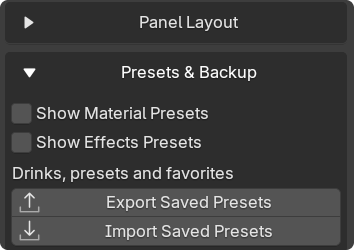
Section titled “Save and reuse”Turn on the preset lists in Gear › Settings › Presets & Backup, then save from the matching tab.
| Save | How |
|---|---|
| A glass material | Glass › Show Custom Material Presets › Save as new Preset |
| A drink with its fill and layers | Drinks › Save Drink |
| One effect’s settings | The preset list inside that effect |
Rename a material preset in its name field. Its check mark applies it.
Copy a setup
Section titled “Copy a setup”- Select only the source glass and click Copy All.
- Select the target glasses and click Paste All on the same tab.
| Tab | What moves |
|---|---|
| Drinks | Drink, fill, surface and layers. The target’s effects stay. |
| Effects | Drink and glass effects. The target’s drink stays. |
For one shared material instead of a copy, use Glass › Material Actions › Link Materials.
Back up or move your presets
Section titled “Back up or move your presets”Saved drinks, presets and favorites work in every scene and survive updates.
- Export Saved Presets: write a JSON backup you can move to another PC.
- Import Saved Presets: merge a backup. Same names get updated.
- Replace Existing: clear the current list before importing. Export first if you want to keep it.
Placement defaults, optional buttons and viewport options are in Settings.
Advanced: change the starting values
On Windows, open %APPDATA%\Blender Foundation\Blender, search your Blender version’s extensions folder for glassware_settings.txt and pick the one for your edition.
Edit it and restart Blender. Updates replace this file, so keep a copy.